How to Automate Business Processes (With Examples + Templates)
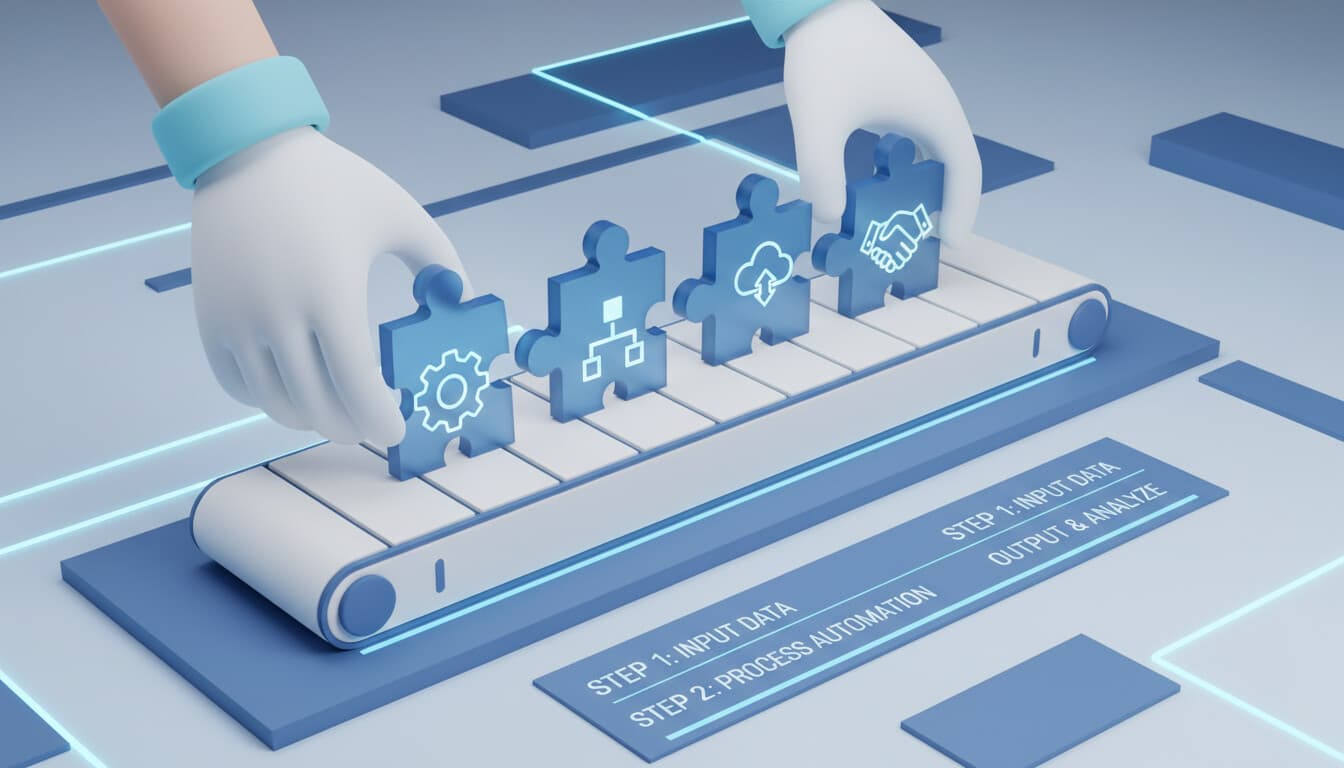
You know some of your business processes should be automated. You've heard it saves time and reduces errors. But actually doing it feels overwhelming. Where do you start? What tools do you use? How do you avoid breaking things?
This guide walks through the practical steps to automate business processes, with examples you can adapt and templates you can use.
The Foundation: Picking the Right Process
Not every process is worth automating. The best candidates share certain characteristics.
Repetitive with predictable patterns. The process happens frequently and follows similar steps each time. Variations exist but within known boundaries.
Clear trigger and endpoint. You can define what starts the process and what marks it complete. Vague processes are hard to automate.
Rule-based decisions. The choices within the process can be expressed as rules. If customer is in California, apply California tax. If order exceeds $500, require manager approval.
Multiple systems involved. Processes that span different software tools (CRM, email, spreadsheets) benefit most from automation. The manual work often happens at the handoff between systems.
High cost of errors. Processes where mistakes cause problems (wrong shipments, missed follow-ups, billing errors) benefit from automation's consistency.
The 7-Step Automation Process
Follow these steps to automate any business process.
Step 1: Document the Current State
Write down exactly how the process works today. Not how it should work in theory, but how it actually works in practice, including the workarounds.
Interview the people who do the work. They know the reality that process documents often miss.
Watch the process happen. Observation reveals steps that people do unconsciously and don't mention.
Note the variations. How does the process differ for different customer types, order sizes, or situations?
Time each step. Understanding where time goes helps prioritize what to automate.
Example documentation for an invoice processing process:
- Invoice arrives via email (70%) or mail (30%)
- Admin identifies vendor (average 30 seconds)
- Admin looks up PO if reference included (2 minutes)
- Admin enters data into accounting software (3 minutes)
- If over $1,000, route to manager for approval (24 hours average delay)
- Once approved, schedule for payment batch
- File digital copy in shared drive
Total time: 6-8 minutes per invoice plus approval delay
Step 2: Identify Automation Points
Review your documented process and mark where automation can help.
Triggers: What starts the process? Email arrival, form submission, scheduled time, status change. These become your automation triggers.
Data movement: Where does information move between systems? These are prime automation points.
Decisions: What choices are made? If they follow rules, they can be automated.
Notifications: Who needs to know what, and when? Automated notifications ensure nothing's forgotten.
Documentation: What gets recorded or filed? Automation can handle this consistently.
For the invoice example:
- Trigger: Email with attachment arrives in invoices@ mailbox
- Data movement: Invoice data to accounting software
- Decision: Over $1,000 goes to manager
- Notification: Manager needs to know about pending approvals
- Documentation: Filing in shared drive
Step 3: Design the Automated Flow
Sketch out how the automated process will work. Think through the whole flow, including what happens when things don't go as expected.
Core flow: The main path when everything works normally.
Branches: Different paths for different conditions.
Error handling: What happens when something fails?
Human touchpoints: Where people still need to be involved.
Example automated invoice flow:
Trigger: Email arrives at invoices@
  └─> AI extracts vendor, amount, PO number from attachment
       └─> Match to existing PO in system
            ├─> Match found: Populate invoice entry
            └─> No match: Flag for human review
       └─> Enter into accounting system
            └─> If amount > $1000:
                 └─> Send approval request to manager
                 └─> Wait for approval
            └─> Schedule in payment batch
       └─> File in shared drive with consistent naming
Step 4: Select Your Tools
Based on your process needs, choose appropriate tools.
For simple triggers and actions between common apps: Zapier or Make handle most scenarios.
For document processing: Nanonets, Docsumo, or built-in AI tools.
For approvals and routing: Your existing project management tool (Asana, Monday) or dedicated workflow tools.
For complex logic: Make, n8n, or custom development.
For AI-powered decisions: Tools with AI capabilities or direct AI API integration. See our best automation tools guide for more options.
Consider what you're already paying for. Many CRM and project management tools have built-in automation that might handle your needs.
Step 5: Build in Stages
Don't try to build the complete automation at once. Start with the core flow and add complexity incrementally.
Stage 1: Get the basic trigger-to-action working. Invoice email creates a task in your tracking system.
Stage 2: Add the main data transformation. AI extracts invoice data and populates fields.
Stage 3: Add branching logic. Over $1,000 goes one way, under goes another.
Stage 4: Add error handling. What happens when extraction fails? When the vendor isn't recognized?
Stage 5: Add reporting and monitoring. Track success rates, processing times, error frequency.
Each stage should work reliably before moving to the next.
Step 6: Test Exhaustively
Before going live, test with real data from real scenarios.
Happy path testing: Normal cases that should work smoothly.
Edge case testing: Unusual but valid scenarios. Very large amounts, strange vendor names, missing information.
Error case testing: What happens when things break? Missing attachments, system unavailable, invalid data.
Volume testing: Will it handle your actual volume? Some automations work fine at 10 per day but fail at 100.
Integration testing: Data flows correctly to all connected systems?
Create a testing checklist and work through it systematically.
Step 7: Launch and Monitor
Go live, but stay vigilant.
Soft launch: Start with a subset of cases. Maybe invoices from certain vendors or only on certain days.
Active monitoring: Check results daily for the first few weeks. Are automations completing? Is data correct?
Feedback collection: Ask the people affected. Are there problems you haven't seen?
Metrics tracking: Compare to your pre-automation baseline. Is it actually saving time? Reducing errors?
Iteration: Based on what you learn, improve the automation. Add handling for cases you didn't anticipate.
Template: Customer Onboarding Automation
Here's a template you can adapt for customer onboarding. For more quick wins, see our business process automation quick wins list.
Trigger: New customer record created in CRM (or payment received, or contract signed)
Immediate actions (within minutes):
- Send welcome email with key information
- Create project/folder in project management tool
- Add to appropriate email lists
- Generate login credentials if applicable
- Notify assigned team member
Day 1-3 actions:
- Send "getting started" resources
- Schedule kickoff call if applicable
- Check for first login/usage
Day 7 actions:
- Send tips email based on usage (or non-usage)
- Create task for team member to check in if no engagement
Day 30 actions:
- Send feedback request
- Trigger review of account health
- If low engagement, escalate to retention workflow
Conditional branches:
- Different paths based on customer tier (enterprise vs. standard)
- Different paths based on product purchased
- Escalation path if onboarding tasks not completed
Template: Lead Follow-Up Automation
Adapt this for sales lead management.
Trigger: Lead submits form on website
Immediate actions:
- Create contact in CRM
- Send acknowledgment email
- Score lead based on form data (company size, budget, timeline)
- If score > threshold, alert sales rep immediately
- If score < threshold, add to nurture sequence
Scoring criteria (customize for your business):
- Company size: 10+ employees (+2 points)
- Budget indicated: Yes (+3 points)
- Timeline: Within 3 months (+2 points)
- Requested demo (+3 points)
Nurture sequence (for lower-scored leads):
- Day 3: Helpful content email related to their interest
- Day 7: Case study email
- Day 14: Check-in email asking if questions
- Day 30: Offer consultation call
Re-engagement triggers:
- Lead visits pricing page: Alert sales rep
- Lead opens 3+ emails: Upgrade score and notify
- Lead downloads content: Tag interest area
Template: Support Ticket Automation
Adapt this for customer support processes.
Trigger: New support email or form submission
Immediate actions:
- Create ticket in help desk
- Send acknowledgment with ticket number
- AI categorizes issue (billing, technical, feature request, etc.)
- AI assesses urgency (keywords, customer tier, issue type)
Routing logic:
- Billing issues → billing team queue
- Technical issues → technical support queue
- Feature requests → product feedback log
- VIP customers → senior support queue regardless of issue type
SLA monitoring:
- Set response deadline based on urgency and customer tier
- 4 hours before deadline: Reminder to assigned agent
- At deadline: Escalate to supervisor
- Past deadline: Alert management
Resolution actions:
- Ticket closed → Send satisfaction survey
- Low satisfaction score → Escalate for review
- Resolved without response → Track for efficiency metrics
Common Mistakes and How to Avoid Them
Mistake: Automating without understanding the process.
Fix: Spend real time documenting current state. Interview people. Watch the work happen. Shortcuts here cause problems later.
Mistake: Building too much too fast.
Fix: Start simple. Get the basic flow working. Add complexity only after proving the foundation.
Mistake: Forgetting about errors.
Fix: Every automation will encounter errors. Plan for them. What happens when the API is down? When data is missing? When formats change?
Mistake: No monitoring after launch.
Fix: Schedule regular check-ins. Review automation logs. Talk to affected team members. Silent failures are the worst kind.
Mistake: Not measuring impact.
Fix: Define success metrics before you start. Track them consistently. If automation isn't delivering value, know it quickly.
When to Get Help
Some automations you can build yourself. Others benefit from professional help.
DIY territory:
- Simple connections between popular apps
- Following documented templates
- Your technical comfort is reasonable
- Stakes are low if something breaks
Get help when:
- Process is complex with many branches
- Multiple systems need integration
- AI/ML components required
- Process is business-critical
- You've tried and it's not working
For help deciding between DIY and hiring an agency, see DIY automation vs agency.
We help businesses automate processes every day. If you're stuck or want to move faster, see examples of what we build or schedule a conversation. We'll tell you honestly whether you need help or can handle it yourself.